


What is a ClickFix attack?
A ClickFix attack is a social engineering technique where attackers trick a user into running a system command to “fix” a problem that does not actually exist. Instead of delivering malware directly, the attacker convinces the user to execute it themselves.
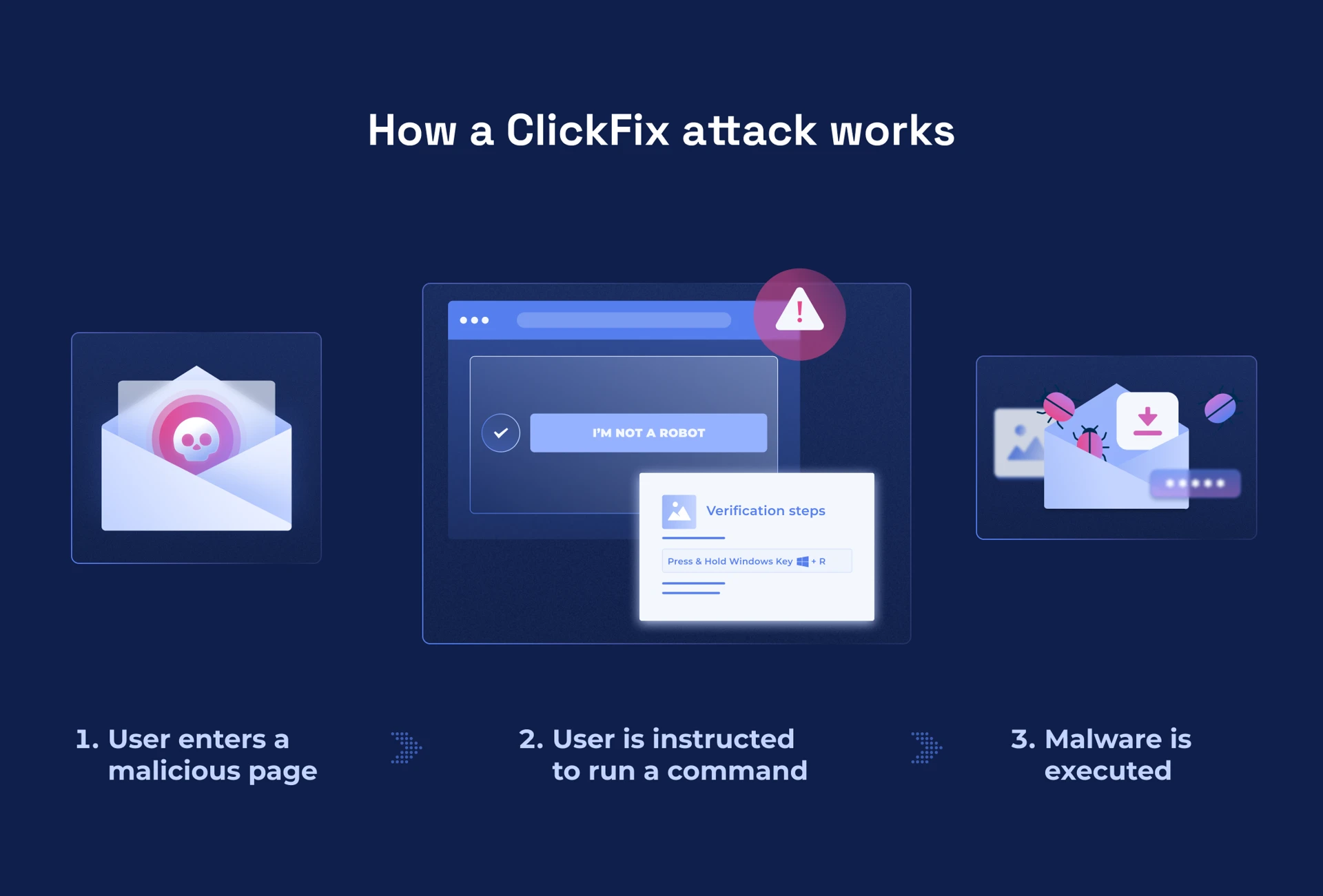
The attack typically begins with a phishing email, malicious advertisement, or compromised website. After clicking a link, the user is taken to a page that looks legitimate, but displays a fake issue that must be resolved before continuing. These pages often appear as familiar prompts such as verification checks, update requests, or access errors.
Instead of completing a normal verification step inside the browser, the page instructs the user to perform a system level action, such as opening the Run dialog or launching tools like PowerShell. In a ClickFix attack, the user becomes the installer.
It’s important to note that while many public examples use Windows shortcuts, ClickFix is not limited to Windows. Recent campaigns have also targeted macOS users by instructing them to paste commands into Terminal or other local tools.
If a webpage asks the user to leave the browser and run a command on their computer to continue, it is not a verification but an attack.
How a ClickFix attack works
Classic method: Windows Run dialog (Win + R)
A common variation of ClickFix uses the Windows Run dialog to execute malicious commands (Figure 2). Once the user reaches the malicious page, the attacker attempts to convince them to execute a command on their own computer. The page displays a message that appears legitimate, often claiming that human verification is required, access is blocked, a session has expired, or a security check has failed. Instead of asking the user to click images or check a box like in a regular verification flow, the page instructs them to take a system-level action (Figure 1).
Typical instructions include:
Press Windows + R to open the Run dialog
Press Ctrl + V to paste a command
Press Enter to execute it
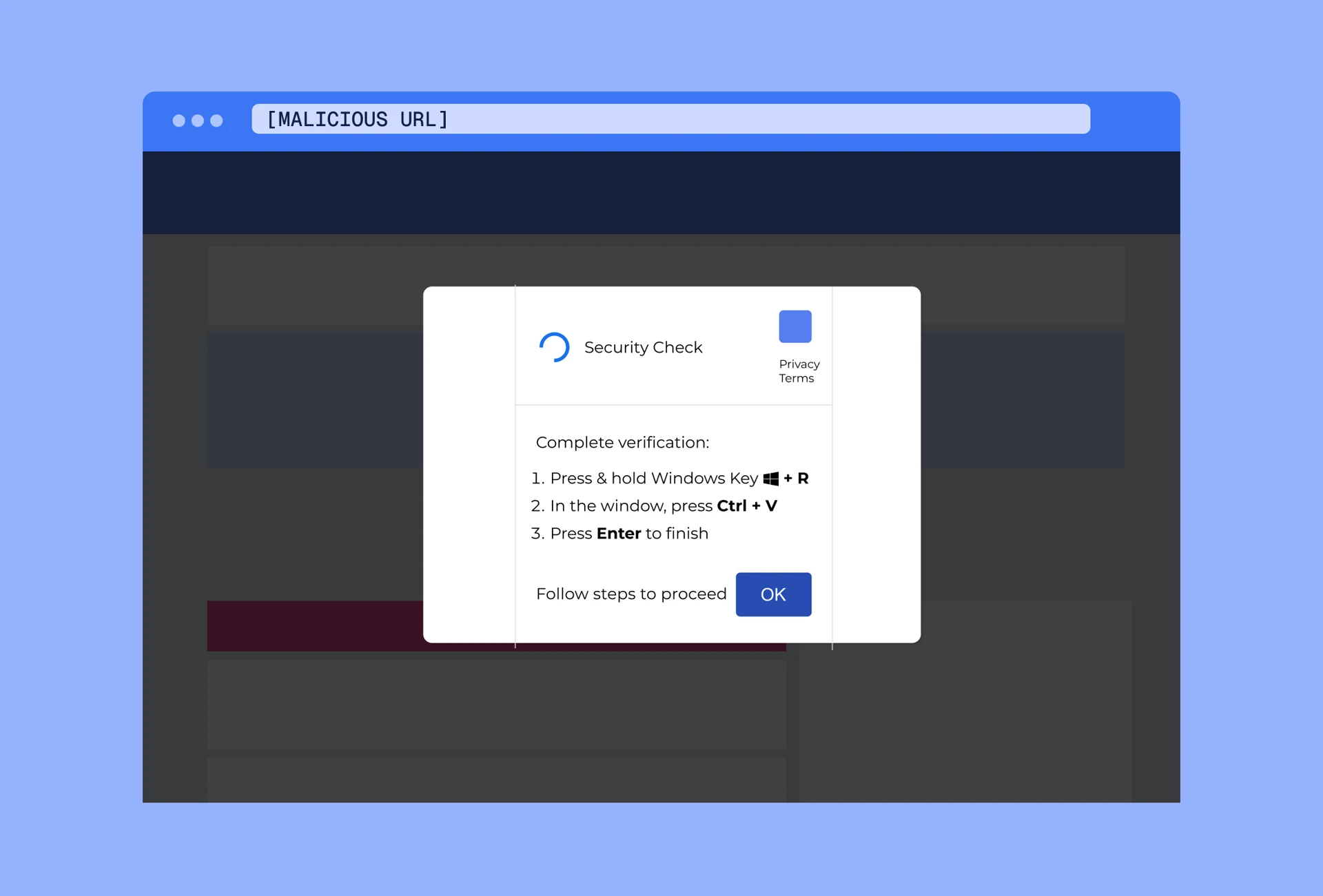
Some malicious pages automatically copy a command to the clipboard, while others display the command for the user to copy manually. When the command is pasted and executed, it often launches a built-in system tool such as PowerShell and retrieves additional code from the internet.
From there, attackers may steal credentials, install remote access tools, establish persistence on the device, or deliver additional malware payloads. Unlike traditional phishing, the malware is not delivered as a file attachment. Instead, the attacker guides the user into executing the command themselves.
Emerging variation: Windows Terminal (Win + X)
In February 2026, Microsoft identified a ClickFix campaign introducing a new variation that replaces the traditional Run dialog (Win + R) with Windows Terminal (Figure 3). The change helps attackers bypass detections specifically tuned to suspicious activity launched from the Run dialog. In this variation, instead of opening the Run dialog, the malicious page instructs the user to:
Press Windows + X to open the Power User menu
Press I to launch Windows Terminal
Press Ctrl + V to paste a command
Press Enter to execute it

Because Windows Terminal is a legitimate system tool commonly used for administration and development tasks, the instructions may appear less suspicious to the user.
Regardless of the command or system tool used, the core tactic remains the same: the attacker convinces the user to execute malicious code on their own computer.
Common ClickFix scenarios
ClickFix attacks often appear as common troubleshooting or verification prompts. The following examples (Figures 4-6) illustrate some of the scenarios users may encounter.
Fake human verification

Fake browser or system update

Document or portal error

Why are ClickFix attacks dangerous?
ClickFix attacks exploit a gap between technical defenses and normal user behavior. Most security controls are designed to detect malicious files, suspicious links, or exploit activity. However, in ClickFix attacks, the user launches legitimate system tools themselves. Because tools like PowerShell are commonly used for legitimate administration, the activity may appear normal to security systems.
The attack works by turning a routine troubleshooting behavior into a malware delivery mechanism. The approach is particularly effective in environments where users are encouraged or expected to work independently and resolve issues quickly. When the priority is to keep work moving, instructions that appear to fix a problem may be followed without additional verification.
How to defend against ClickFix attacks
ClickFix attacks often succeed because of gaps across three areas: user awareness, organizational processes, and technical controls.
User awareness
Users may interpret the prompt as a normal part of their workflow. A ClickFix often presents a verification step, update request, or access issue; all elements that are common in daily work. Thus, the instructions to proceed may not immediately appear unusual.
Training should clearly define the boundary between browser based verification and operating system level actions. Public websites do not require users to open the Run dialog, launch PowerShell, or execute commands to verify access.
Organizational processes
When users encounter unexpected instructions, they may not know how to verify them. If reporting channels are unclear or escalation paths are not easy to access, users may follow the instructions rather than pause and ask for help.
Organizations should provide simple reporting mechanisms and reinforce that pausing to verify is encouraged and supported.
Technical controls
ClickFix attacks frequently rely on legitimate system utilities such as PowerShell or the Windows Run dialog. These tools are signed, widely used, and often permitted in normal workflows. As a result, the activity can resemble legitimate behavior rather than traditional malware execution.
Where operationally appropriate, organizations can reduce risk by limiting unnecessary scripting capabilities for standard users, monitoring command execution that originates from browsers, and restricting system-level execution rights that are not required for a user's role.
What to teach users
The most effective defense against ClickFix is helping users recognize the behavioral pattern behind the attack. Users should remember a simple rule: Websites do not require system commands to verify access.
If a webpage asks you to open the Run dialog, launch PowerShell or Terminal, or paste and execute a command, stop and verify before proceeding. Verification steps should always stay inside the browser. System commands belong to administrators and trusted internal processes.
How Hoxhunt helps organizations prepare
Hoxhunt helps organizations prepare for threats like ClickFix through phishing training and simulations based on relevant real-world attack techniques. This helps users recognize suspicious prompts, understand the difference between normal browser-based verification and unusual requests to run local system commands, and report attacks before they progress.
Hoxhunt also gives security leaders visibility into reporting behavior and response patterns, helping them understand where additional support or reinforcement is needed.
Get more cybersecurity insights like this
- Subscribe to All Things Human Risk to get a monthly round up of our latest content
- Request a demo for a customized walkthrough of Hoxhunt
.avif)