


It’s Tuesday morning when you notice a new calendar invite in you inbox:
“Employee salary increase review”
It’s already on your calendar but you don’t recognize the sender. And you definitely didn’t book it yourself.
However, it isn’t a scheduling mishap, it’s a growing phishing technique that uses malicious calendar invites that land directly in your calendar.
In this post, we’ll cover the security gap that allows malicious calendar events to persist even when the original phishing email is removed or reported.
What is calendar invite phishing?
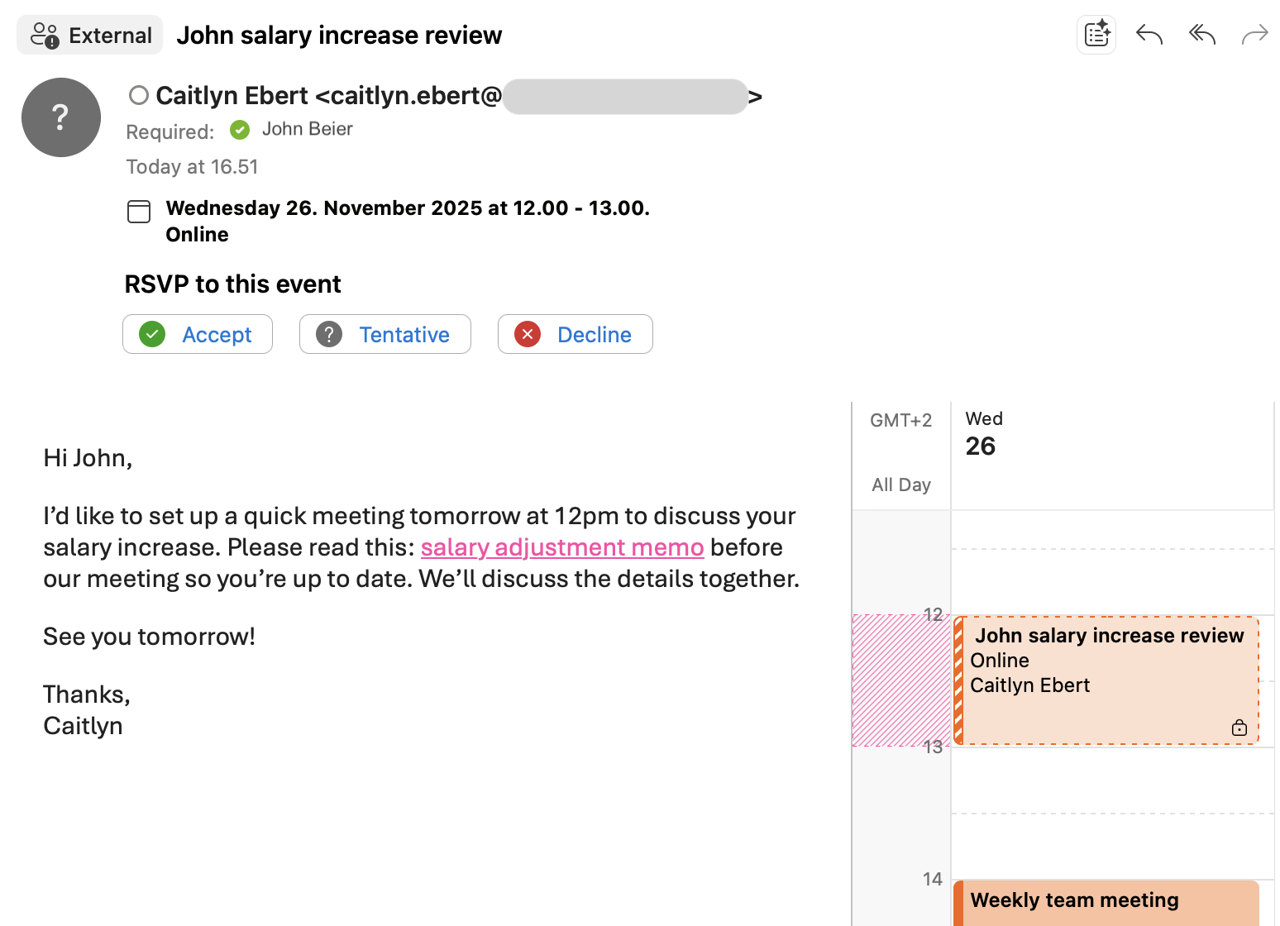
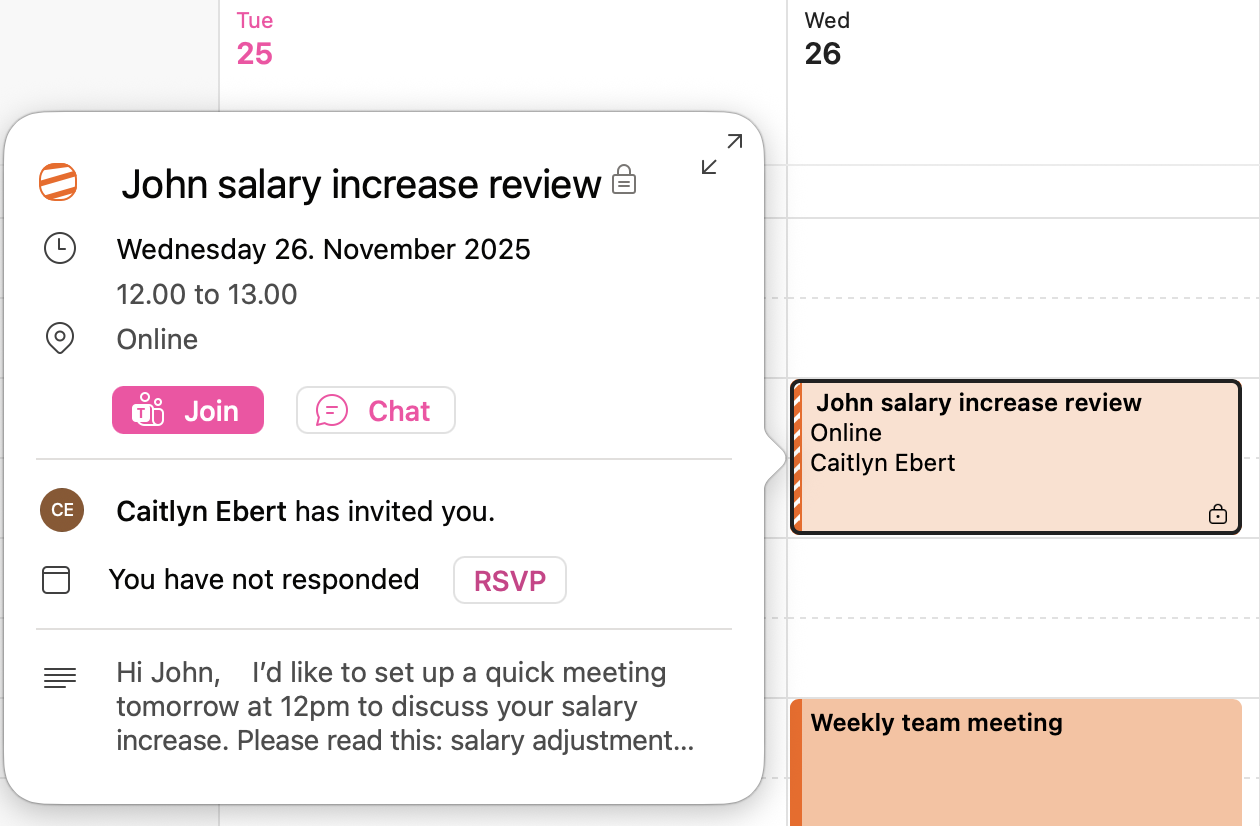
Attackers send phishing emails including .ics files which are a standard format for calendar invites. One example of what this can look like for the user is seen in the image below (Figure 1). Many email environments, including Outlook, automatically interpret these files as events and quietly add them to the user’s calendar as soon as the message hits their inbox. In Figure 2 below, you can see the newly added fake event among the user’s other calendar items.
From there, attackers rely on the user’s routine:
You see a new meeting on your calendar - of course you’ll want to find out the details.
These invites often look legitimate. The attackers try to get the user to click links to join the meetings or check relevant attachments.
How does calendar invite phishing work?
- A calendar file (.ics) arrives attached to an email.
- Outlook treats these invites differently from standard email content. When the inbox syncs, the invite gets added automatically to the calendar as an event.
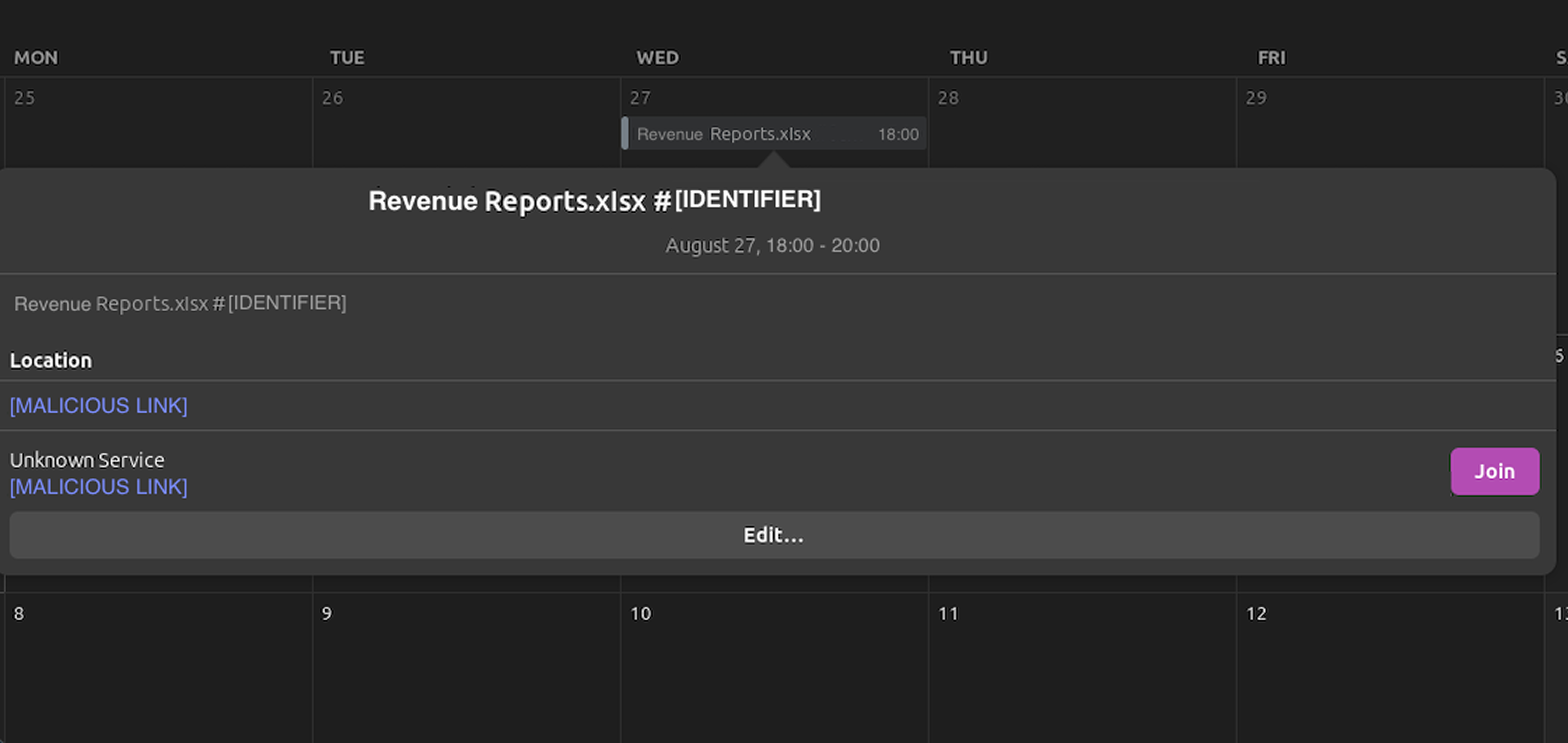
- Links, QR codes, or attachments are often included, for example in the agenda or location fields of the event item, as shown in the real example below (Figure 3). In Microsoft 365, any attached files appear directly inside the meeting invite.
- Clicking them can lead to fake login pages or malicious downloads.
- Crucially, even if the user deletes the email, the calendar event can still remain visible.
Can the email just be reported as phishing?
A suspicious and unexpected meeting invite should be reported as phishing. However, reporting the email might not remove the event from the calendar, so one should stay alert after reporting. Most security tools, including reporting buttons, focus on emails, not calendar objects.
Using calendar invites creates two chances for the attacker with only one phishing email: even after doing the right thing in the email inbox, a user might later be tempted to click the event in their calendar. Hours or even days later, the user might notice the calendar item and think “Oh, what was this meeting again?” If the calendar event is left untouched, it might later pop up reminders as well. This is why the calendar item should be deleted separately. Later in this post, we’ll provide more detailed guidance for users.
What organizations can do to prepare
A security gap emerges when the email with the calendar invite can be reported or removed, but the event in the calendar still remains, giving the attacker another chance. Organizations can reduce the risk through a combination of technical controls and user awareness.
1. Use the Hard Delete action
In response to this threat vector, Microsoft Defender for Office 365 recently introduced a remediation action: the Hard Delete action will now remove the email and the associated calendar entry. The action is available to SOC teams who use Microsoft’s remediation tools like Move to Junk, Delete, Soft Delete and Hard Delete. No admin configuration is needed.
2. Control external calendar invites
Organizations can use PowerShell and mail flow rules to limit how external .ics files are handled in Outlook but it comes with trade-offs.
Exchange Online currently does not offer a tenant-wide toggle to disable automatic calendar processing for external invites.
However, using PowerShell, admins can apply a configuration in bulk across all mailboxes to stop invites from being automatically added to calendars.
- When automated processing is enabled (AutomateProcessing: AutoAccept), Outlook automatically places new requests tentatively on the calendar. This feature is on by default in many tenants.
- If admins disable automatic processing using PowerShell (AutomateProcessing: None), then .ics files will not auto-create events and the users must manually accept to add the meetings.
This type of operation updates each mailbox to disable automatic calendar processing – meaning Outlook will no longer auto-accept or tentatively place incoming meeting requests, including those sent from outside the organization. While this can reduce the chance of malicious .ics files slipping onto users’ calendars, turning off automatic processing can block normal workflows: users may need to manually accept legitimate meeting requests to see them in their calendar. Forcing users to accept or deny all invites from the email inbox is not ideal for many organizations.
Additionally, Microsoft’s mail flow rules can be used to detect and take action on external .ics files, for example quarantining, redirecting or deleting the emails. However, this can unintentionally block legitimate meeting requests and should be used cautiously, ideally with allowlisting of trusted domains and senders.
3. Strengthen user awareness
Phishing attacks always aim to leverage certain emotions such as curiosity, greed and urgency. Helping people recognize suspicious calendar invites and understand safe behavior is essential. The next section outlines practical steps users can take.
How to stay off the hook?
Users don’t need to treat their calendars like a minefield when they remember these steps:
1. Pause before interacting with unexpected invites
If you don’t recognize the meeting or sender, avoid clicking links, scanning QR codes, or opening attachments. Who actually sent the invite? Is it something you expect to see? Attackers are creative, and it may even look like your own booking or a coworker’s, so make sure you really recognize it.
2. Verify through another channel
Need clarity? Reach out via Teams, Slack, or other internal channel before interacting.
3. Report the associated email
Report the email with your report button or alert IT. Reporting the email helps your security team respond to the campaign.
4. Delete or decline the event
If you still see the event in your calendar, remove it so it doesn’t keep resurfacing.
5. Treat calendar items like email
If you wouldn’t click a random link from an unknown email sender, don’t click one from a calendar invite either.
Phishing evolves, and using calendar invites is just the latest way attackers try to get to you. The same principles that protect you in email apply here too: pause, verify and report.
🔑 Key Takeaway: Calendar Invite Phishing Risk
Calendar invite phishing exposes a persistent gap: even if a suspicious email is reported or deleted, the associated calendar event may still remain. There’s no single switch that fully solves this. Without a one-step fix, organizations must look into targeted admin controls and awareness to reduce the risk and keep calendars trustworthy.
How Hoxhunt turn real threats into training
Hoxhunt’s Threat Analysis Team reviews large volumes of reported phishing emails each week, including examples just like this. The most relevant real-world threats are incorporated into our training simulations, ensuring users learn to recognize and report the tactics attackers are actively using.
Hoxhunt users are then drilled on spotting and reporting the latest actual threats making the rounds, removing potentially catastrophic threats from their inboxes with every push of the Hoxhunt reporting button.

Get more cybersecurity insights like this
- Subscribe to All Things Human Risk to get a monthly round up of our latest content
- Request a demo for a customized walkthrough of Hoxhunt
.webp)
.avif)